> ## Documentation Index
> Fetch the complete documentation index at: https://docs.rangesharp.com/llms.txt
> Use this file to discover all available pages before exploring further.
# Your First Training Session
> Run your first range training session in under 5 minutes.
## Before you start
To run a training session, you need at least one strategy with one spot that has some cells painted. If you haven't created anything yet, the fastest way to get started is to grab a strategy from the Library.
## Option A: Train from the Library (fastest)
Click **Library** in the nav rail.
Browse the available solutions or use the search bar. Look for a **Simplified GTO** strategy — these are available on all plans and are great for getting started.
Click on a strategy card, then click **Add to My Strategies**. The strategy and all its spots are copied to your account.
Click **Study** in the nav rail. Your new strategy appears in the tree on the left.
Click on any spot in the tree to load it. Then press **⌘T** (or click the **Train** button in the toolbar) to start a quick training session on that spot.
## Option B: Create a strategy and train on it
Click **Study** in the nav rail.
Click the **+** button at the top of the strategy tree. Give your strategy a name (for example, "6-Max Cash Opening Ranges") and choose a game format.
Right-click your strategy in the tree and select **Add Spot**. Choose a position (for example, UTG) and an action line (for example, Open Raise).
Select an action color from the palette on the right, then click or drag on cells in the 13×13 grid to mark which hands belong to that action. For example, paint the hands you'd open-raise in green.
Press **⌘T** or click **Train** in the toolbar.
## During the training session
 In **Decision mode** (the default), RangeSharp deals you a random hand and asks you to choose the correct action.
1. Look at the hand displayed on the poker table visualization.
2. Pick an action by clicking the action button or pressing the corresponding number key (1, 2, 3, etc.).
3. RangeSharp tells you immediately if you were right or wrong. If wrong, it shows you the correct action.
4. Press **Space** to advance to the next hand, or let auto-advance move you forward.
5. Keep going until you've answered enough hands, then press **Esc** to end the session.
## After the session
In **Decision mode** (the default), RangeSharp deals you a random hand and asks you to choose the correct action.
1. Look at the hand displayed on the poker table visualization.
2. Pick an action by clicking the action button or pressing the corresponding number key (1, 2, 3, etc.).
3. RangeSharp tells you immediately if you were right or wrong. If wrong, it shows you the correct action.
4. Press **Space** to advance to the next hand, or let auto-advance move you forward.
5. Keep going until you've answered enough hands, then press **Esc** to end the session.
## After the session
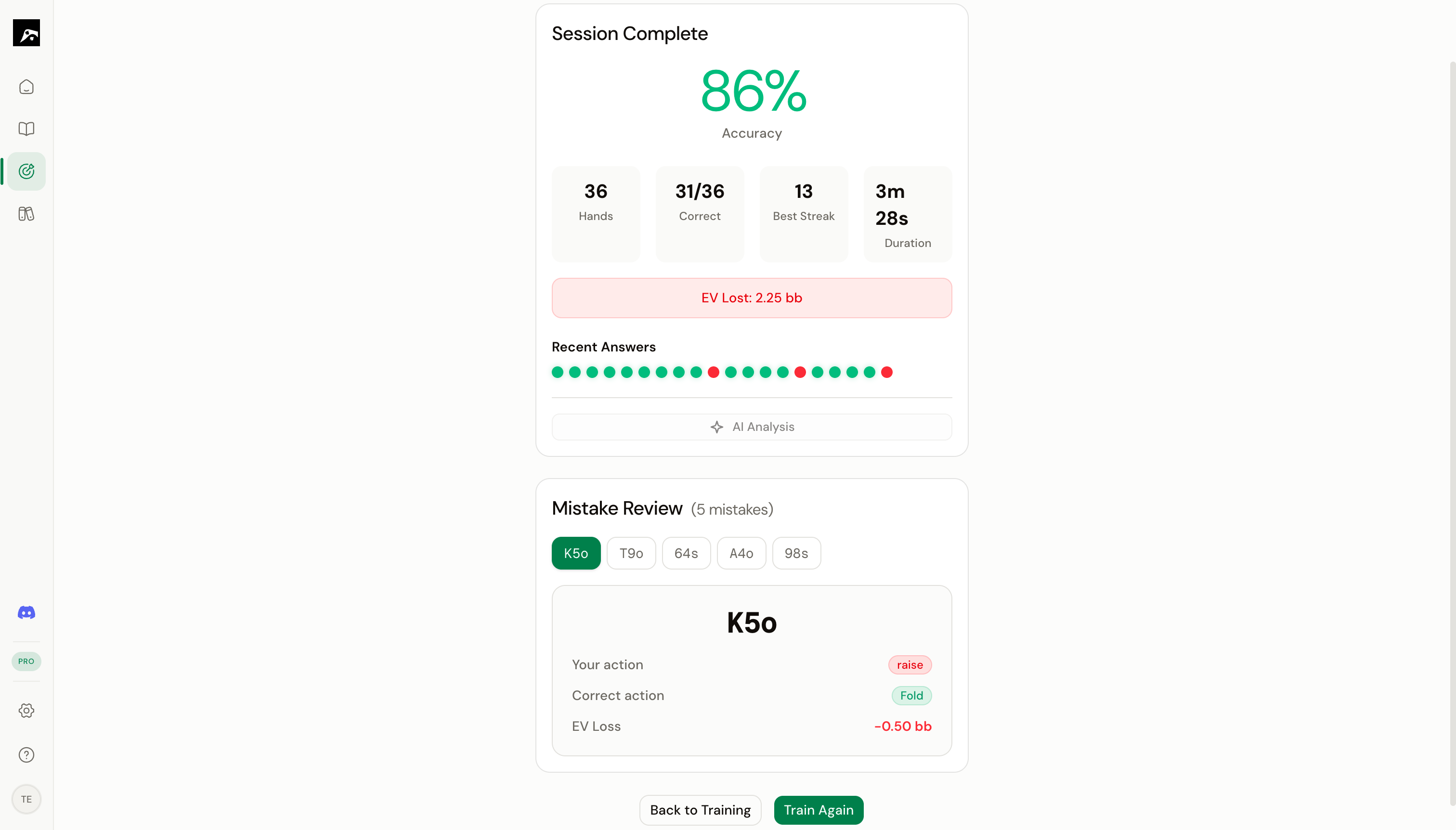 When you stop training, RangeSharp shows you a **session summary** with:
* **Accuracy** — Percentage of correct answers
* **Hands played** — Total hands in the session
* **Longest streak** — Most consecutive correct answers
* **Mistakes** — A list of hands you got wrong, with the correct action shown
Click **Review Mistakes** to step through each error with the correct range displayed beside it.
Training even 10–15 minutes a day builds real muscle memory. RangeSharp's spaced repetition system schedules your reviews automatically, so spots you struggle with come up more often.
## Next steps
Understand how the deal-and-choose training works in detail.
Organize multiple spots into a structured training plan.
When you stop training, RangeSharp shows you a **session summary** with:
* **Accuracy** — Percentage of correct answers
* **Hands played** — Total hands in the session
* **Longest streak** — Most consecutive correct answers
* **Mistakes** — A list of hands you got wrong, with the correct action shown
Click **Review Mistakes** to step through each error with the correct range displayed beside it.
Training even 10–15 minutes a day builds real muscle memory. RangeSharp's spaced repetition system schedules your reviews automatically, so spots you struggle with come up more often.
## Next steps
Understand how the deal-and-choose training works in detail.
Organize multiple spots into a structured training plan.