> ## Documentation Index
> Fetch the complete documentation index at: https://docs.rangesharp.com/llms.txt
> Use this file to discover all available pages before exploring further.
# Navigating the Interface
> Learn the main areas of RangeSharp and how to move between them.
## Main sections
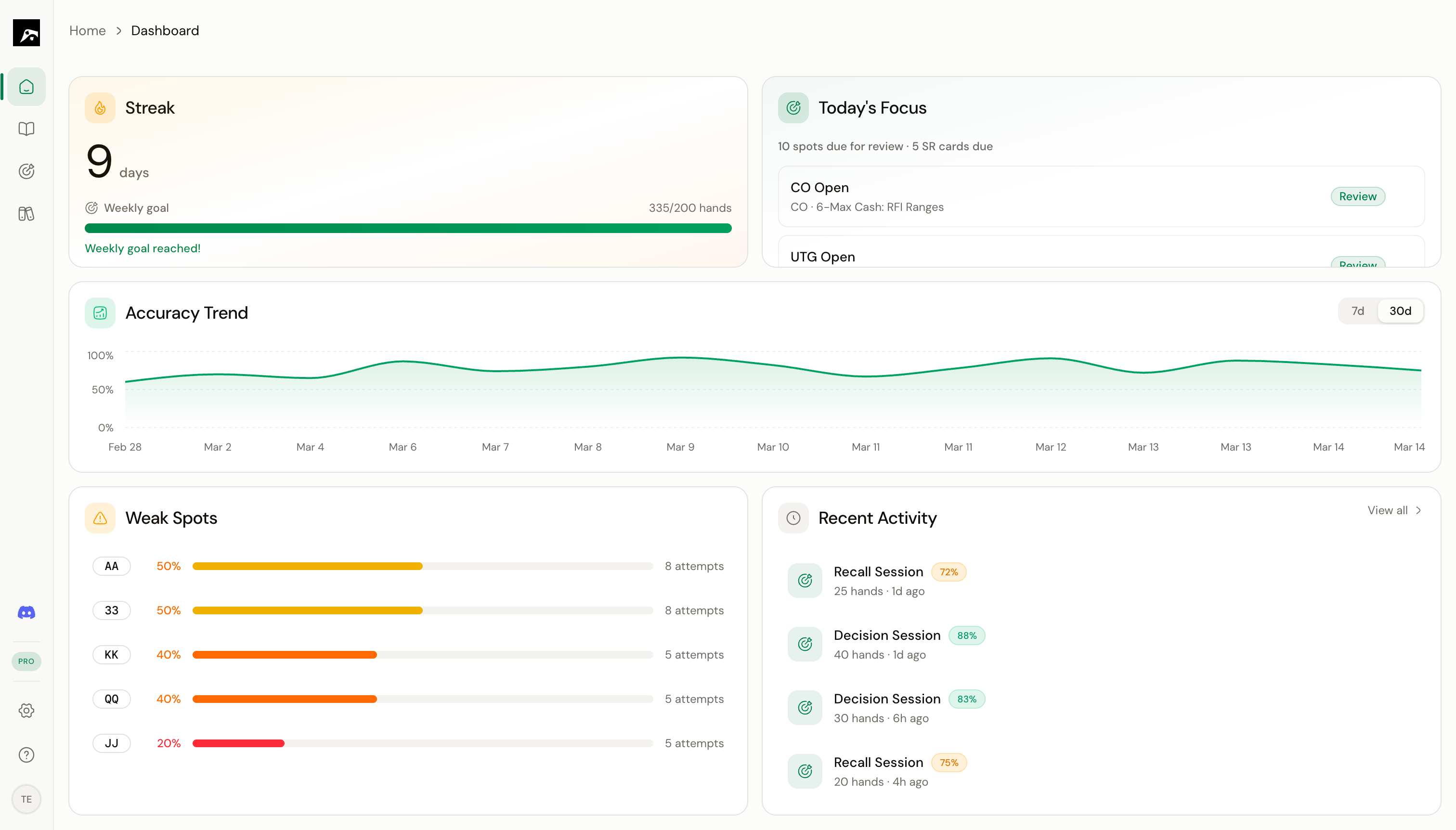 RangeSharp is organized into four main areas, accessible from the navigation rail on the left side of the screen.
| Section | What it's for |
| ----------- | ------------------------------------------------------------------------------------------- |
| **Home** | Your dashboard — view streaks, accuracy trends, weak spots, and daily study recommendations |
| **Study** | The unified workspace where you build, edit, view, and compare range grids |
| **Train** | Practice your ranges in Decision mode or Recall mode, and review session results |
| **Library** | Browse and add pre-built GTO and simplified strategies to your collection |
## The navigation rail
The nav rail runs along the left edge of the screen. Each icon takes you to one of the four main sections. The bottom of the rail gives you access to **Settings** and your **Account**.
On smaller screens, the nav rail collapses into a bottom navigation bar.
## The command bar
Press **⌘K** (Mac) or **Ctrl+K** (Windows) anywhere in the app to open the command bar. This is the fastest way to:
* **Search** for any strategy, spot, or study plan by name
* **Navigate** to any section of the app
* **Run actions** like starting a training session, creating a strategy, or toggling overlays
Start typing and the results filter in real time. Select a result with the arrow keys and press **Enter**.
## Study workspace layout
RangeSharp is organized into four main areas, accessible from the navigation rail on the left side of the screen.
| Section | What it's for |
| ----------- | ------------------------------------------------------------------------------------------- |
| **Home** | Your dashboard — view streaks, accuracy trends, weak spots, and daily study recommendations |
| **Study** | The unified workspace where you build, edit, view, and compare range grids |
| **Train** | Practice your ranges in Decision mode or Recall mode, and review session results |
| **Library** | Browse and add pre-built GTO and simplified strategies to your collection |
## The navigation rail
The nav rail runs along the left edge of the screen. Each icon takes you to one of the four main sections. The bottom of the rail gives you access to **Settings** and your **Account**.
On smaller screens, the nav rail collapses into a bottom navigation bar.
## The command bar
Press **⌘K** (Mac) or **Ctrl+K** (Windows) anywhere in the app to open the command bar. This is the fastest way to:
* **Search** for any strategy, spot, or study plan by name
* **Navigate** to any section of the app
* **Run actions** like starting a training session, creating a strategy, or toggling overlays
Start typing and the results filter in real time. Select a result with the arrow keys and press **Enter**.
## Study workspace layout
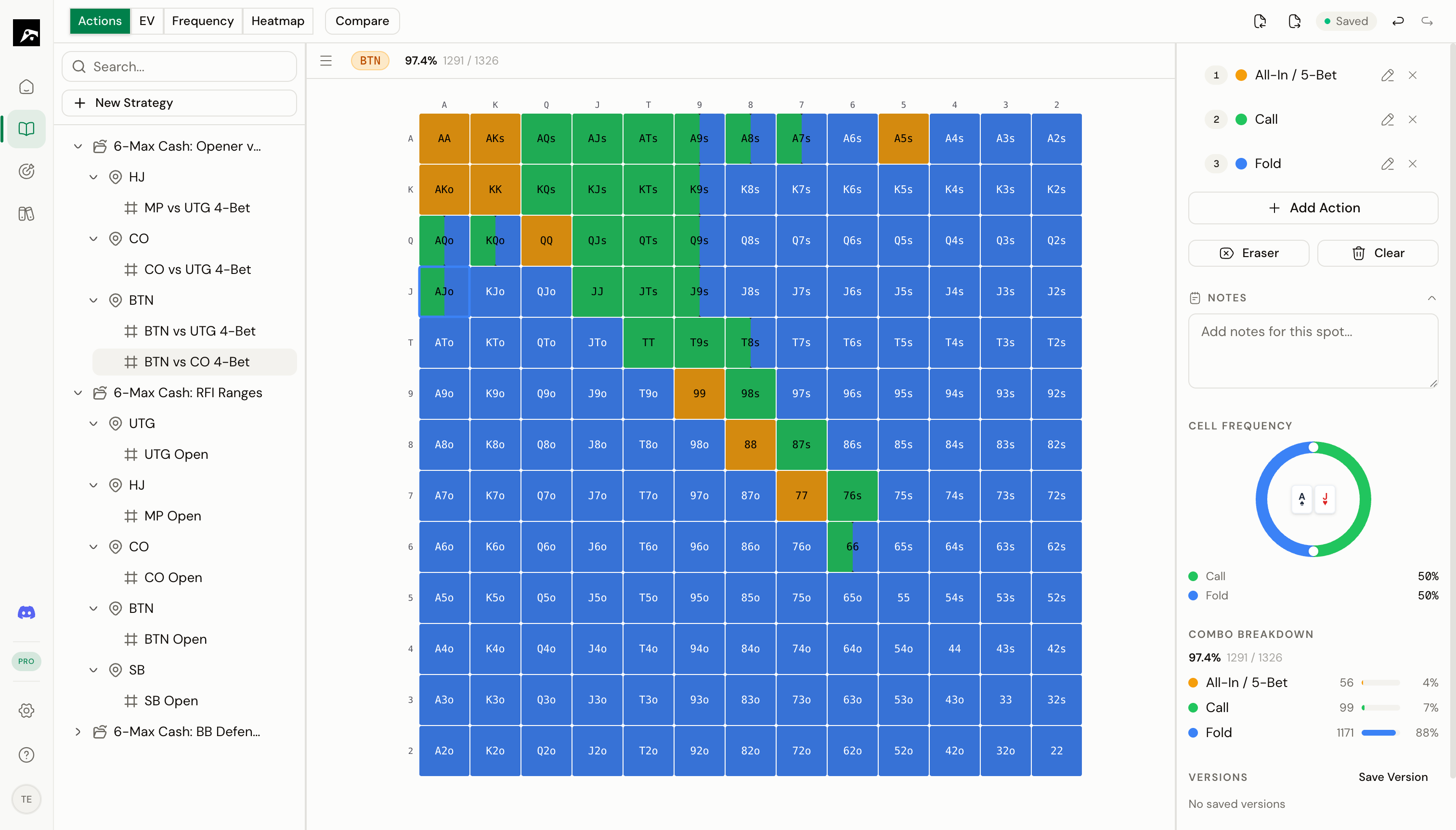 The Study workspace has three panels:
| Panel | Location | Purpose |
| ----------------- | -------- | ---------------------------------------------------------- |
| **Strategy tree** | Left | Navigate your strategies and spots using the decision tree |
| **Range grid** | Center | The 13×13 hand matrix where you view and edit ranges |
| **Detail panel** | Right | Action palette, frequency controls, notes, and combo stats |
Above the grid you'll see the **spot context bar**, which shows the current spot's position, action line, and stack depth.
Above that is the **toolbar**, which gives you access to overlays, compare mode, import, export, and training shortcuts.
## Settings panel
Click the gear icon in the nav rail to open the Settings panel. From here you can manage:
* **Account** — Email, password, linked providers
* **Preferences** — Default action colors, training settings
* **Theme** — Dark, light, or system-based appearance
* **Subscription** — View your current plan, upgrade, or manage billing
## Keyboard shortcuts
RangeSharp is designed for keyboard-first use. Here are the most important shortcuts to know from the start:
| Shortcut | Action |
| --------------------- | ------------------------------------- |
| **⌘K** / **Ctrl+K** | Open command bar |
| **1–9** | Switch active action color (in Study) |
| **⌘Z** / **Ctrl+Z** | Undo |
| **⌘⇧Z** / **Ctrl+⇧Z** | Redo |
| **⌘T** / **Ctrl+T** | Quick train on current spot |
| **Space** | Advance to next hand (in Training) |
| **Esc** | Stop training session |
See [Keyboard Shortcuts](/study/keyboard-shortcuts) for the full list.
The Study workspace has three panels:
| Panel | Location | Purpose |
| ----------------- | -------- | ---------------------------------------------------------- |
| **Strategy tree** | Left | Navigate your strategies and spots using the decision tree |
| **Range grid** | Center | The 13×13 hand matrix where you view and edit ranges |
| **Detail panel** | Right | Action palette, frequency controls, notes, and combo stats |
Above the grid you'll see the **spot context bar**, which shows the current spot's position, action line, and stack depth.
Above that is the **toolbar**, which gives you access to overlays, compare mode, import, export, and training shortcuts.
## Settings panel
Click the gear icon in the nav rail to open the Settings panel. From here you can manage:
* **Account** — Email, password, linked providers
* **Preferences** — Default action colors, training settings
* **Theme** — Dark, light, or system-based appearance
* **Subscription** — View your current plan, upgrade, or manage billing
## Keyboard shortcuts
RangeSharp is designed for keyboard-first use. Here are the most important shortcuts to know from the start:
| Shortcut | Action |
| --------------------- | ------------------------------------- |
| **⌘K** / **Ctrl+K** | Open command bar |
| **1–9** | Switch active action color (in Study) |
| **⌘Z** / **Ctrl+Z** | Undo |
| **⌘⇧Z** / **Ctrl+⇧Z** | Redo |
| **⌘T** / **Ctrl+T** | Quick train on current spot |
| **Space** | Advance to next hand (in Training) |
| **Esc** | Stop training session |
See [Keyboard Shortcuts](/study/keyboard-shortcuts) for the full list.