> ## Documentation Index
> Fetch the complete documentation index at: https://docs.rangesharp.com/llms.txt
> Use this file to discover all available pages before exploring further.
# Action Palette
> How to manage action colors, add new actions, and use keyboard shortcuts.
## The action palette
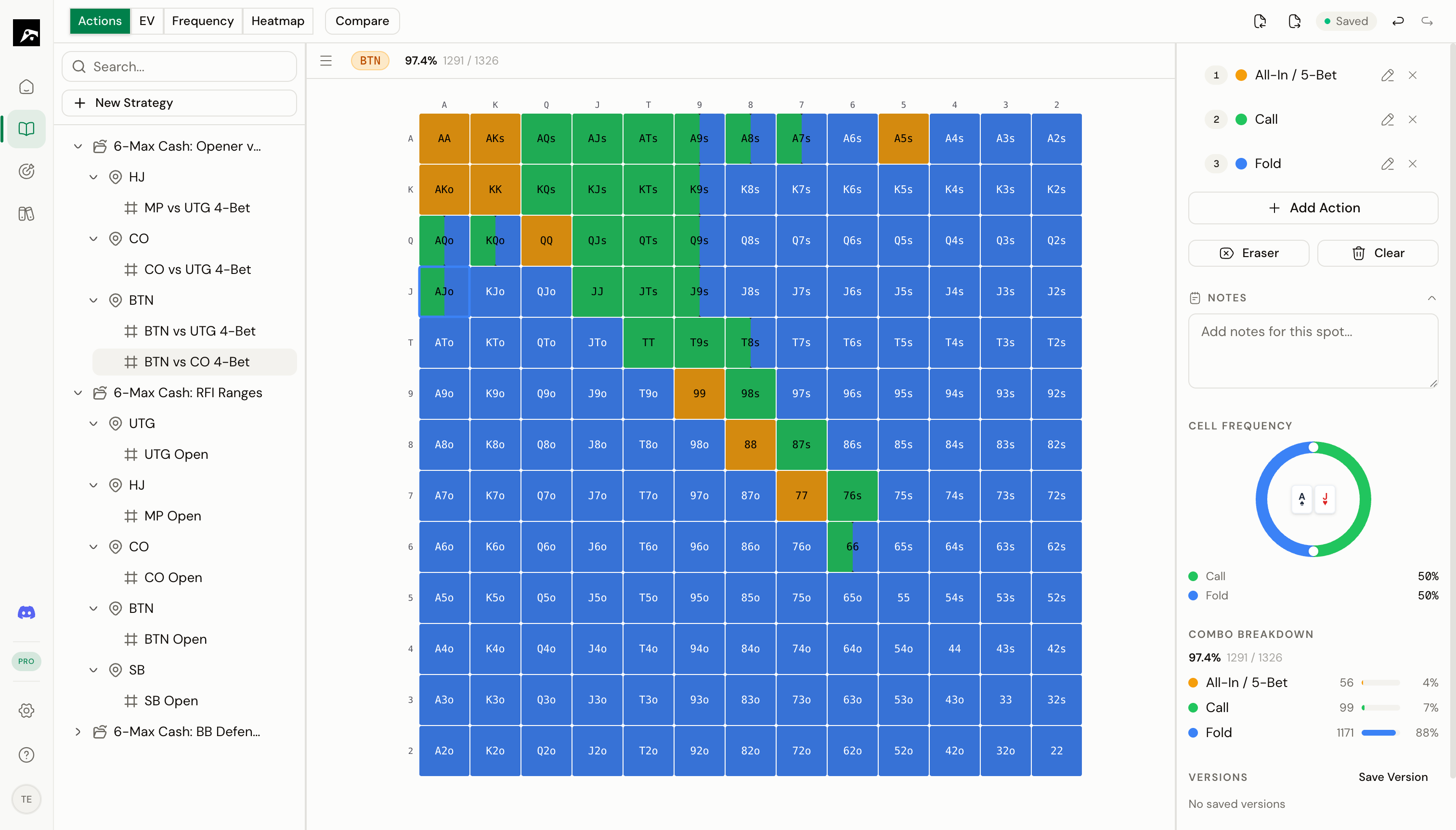 The action palette is in the right panel of the Study workspace. It shows all the actions available for the current spot and lets you select which action to paint with.
Each action has:
* A **color** — displayed on the grid
* A **name** — like "Raise", "Call", or "Fold"
* A **keyboard shortcut** — the number key (1–9) to quickly switch to it
## Select an action
Click any action in the palette to make it the **active action**. The active action is highlighted and will be applied when you click or drag on the grid.
You can also press **1–9** on your keyboard to switch actions without moving your mouse.
## Add a new action
At the bottom of the action list, click **Add Action**.
Type a name (e.g., "3-Bet", "Limp", "All-In").
Click the color swatch to open the color picker. Choose any color you like.
The new action appears in the palette and is ready to use.
### Action limits by plan
| Plan | Max actions per spot |
| ----- | -------------------- |
| Free | 2 |
| Pro | 40 |
| Elite | 40 |
## Change an action's color
1. Click the color swatch next to the action.
2. Use the color picker to select a new color.
3. The grid updates immediately to reflect the change.
## Rename an action
1. Double-click the action name in the palette.
2. Type the new name.
3. Press **Enter** to save.
## Delete an action
1. Click the **×** or trash icon next to the action.
2. Confirm the deletion.
All cells painted with that action are cleared from the grid.
## Default action colors
You can set **default action colors** in your preferences so every new spot starts with your preferred setup:
1. Go to **Settings → Preferences**.
2. Under **Default Action Colors**, configure your default actions and colors.
3. New spots will use these defaults instead of the system defaults.
## The eraser tool
The eraser is a special tool in the palette that clears cells instead of painting them. Click the eraser icon to activate it, then click or drag on cells to remove all actions.
**Keyboard shortcut tip:** Assign your most common actions to keys 1–3 so you can switch between raise/call/fold without reaching for the mouse.
The action palette is in the right panel of the Study workspace. It shows all the actions available for the current spot and lets you select which action to paint with.
Each action has:
* A **color** — displayed on the grid
* A **name** — like "Raise", "Call", or "Fold"
* A **keyboard shortcut** — the number key (1–9) to quickly switch to it
## Select an action
Click any action in the palette to make it the **active action**. The active action is highlighted and will be applied when you click or drag on the grid.
You can also press **1–9** on your keyboard to switch actions without moving your mouse.
## Add a new action
At the bottom of the action list, click **Add Action**.
Type a name (e.g., "3-Bet", "Limp", "All-In").
Click the color swatch to open the color picker. Choose any color you like.
The new action appears in the palette and is ready to use.
### Action limits by plan
| Plan | Max actions per spot |
| ----- | -------------------- |
| Free | 2 |
| Pro | 40 |
| Elite | 40 |
## Change an action's color
1. Click the color swatch next to the action.
2. Use the color picker to select a new color.
3. The grid updates immediately to reflect the change.
## Rename an action
1. Double-click the action name in the palette.
2. Type the new name.
3. Press **Enter** to save.
## Delete an action
1. Click the **×** or trash icon next to the action.
2. Confirm the deletion.
All cells painted with that action are cleared from the grid.
## Default action colors
You can set **default action colors** in your preferences so every new spot starts with your preferred setup:
1. Go to **Settings → Preferences**.
2. Under **Default Action Colors**, configure your default actions and colors.
3. New spots will use these defaults instead of the system defaults.
## The eraser tool
The eraser is a special tool in the palette that clears cells instead of painting them. Click the eraser icon to activate it, then click or drag on cells to remove all actions.
**Keyboard shortcut tip:** Assign your most common actions to keys 1–3 so you can switch between raise/call/fold without reaching for the mouse.