> ## Documentation Index
> Fetch the complete documentation index at: https://docs.rangesharp.com/llms.txt
> Use this file to discover all available pages before exploring further.
# Study Workspace Overview
> The unified workspace where you build, edit, view, and compare your ranges.
## The Study workspace
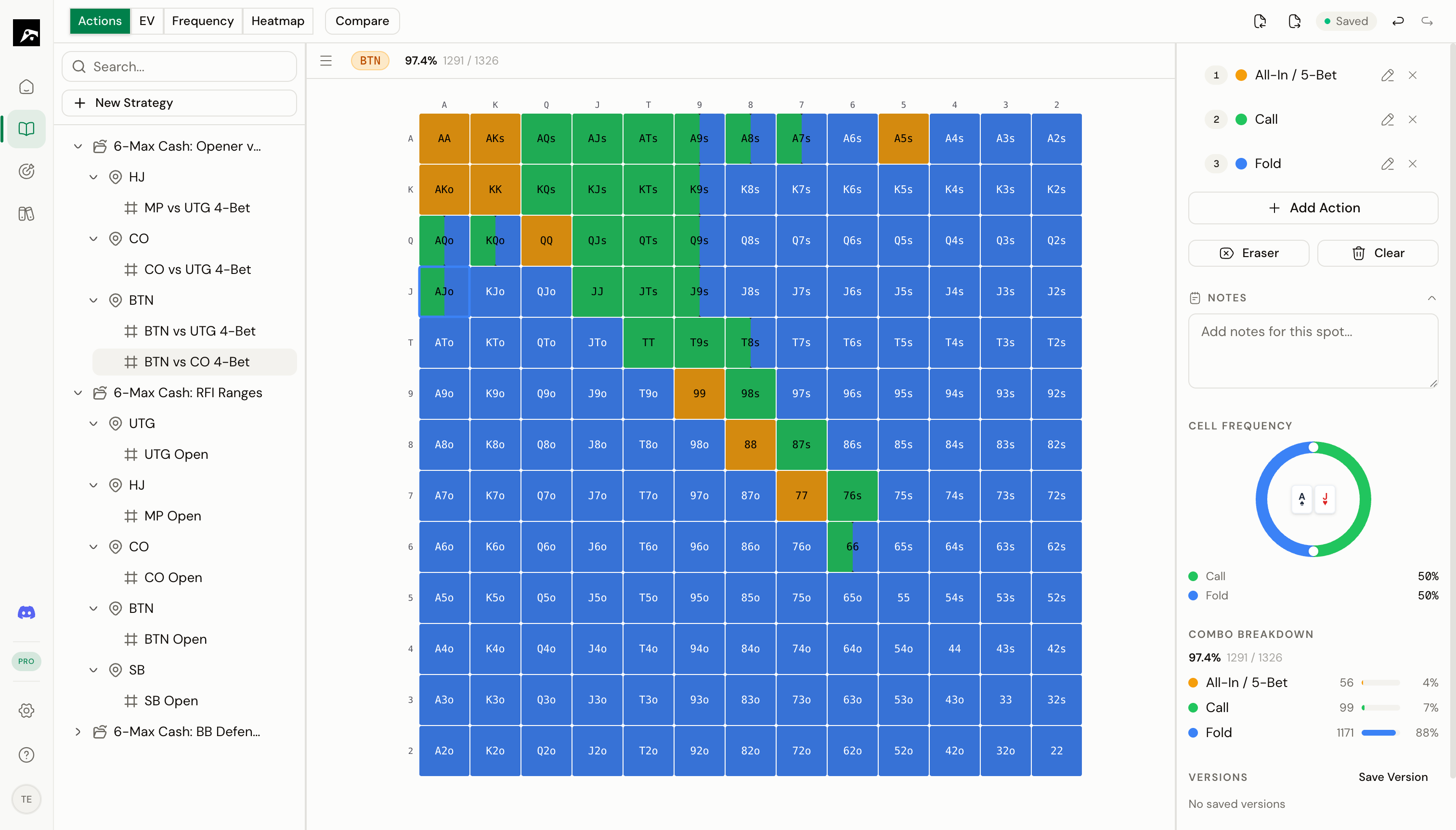 The Study workspace is the heart of RangeSharp. It's where you build your ranges, edit individual hands, view your strategies, and compare ranges side by side — all in one place.
Unlike tools that separate editing and viewing into different apps, RangeSharp combines everything into a single workspace so you never have to switch contexts.
## Layout
The Study workspace has three main areas:
| Area | Position | Purpose |
| ----------------- | ----------- | ------------------------------------------------------------------------------- |
| **Strategy tree** | Left panel | Browse and navigate your strategies and spots using the decision tree |
| **Range grid** | Center | The 13×13 hand matrix where you view and paint ranges |
| **Detail panel** | Right panel | Action palette, frequency controls, notes, combo statistics, and training stats |
### Above the grid
* **Spot context bar** — Shows the current spot's position, action line, and stack depth
* **Toolbar** — Access overlays, compare mode, import/export, screenshot, and training shortcuts
## Working with the strategy tree
The left panel displays your strategies as a tree. Each strategy expands to reveal its spots, organized by position and action line.
* **Click a spot** to load it into the grid
* **Right-click** for context menu options (add spot, duplicate, delete, rename)
* **Drag and drop** to reorder spots within a strategy
* **Mastery badges** appear next to each spot, showing your training progress
## Working with the range grid
The center of the workspace shows the 13×13 hand matrix. This is a canvas-based grid for smooth, responsive interaction.
* **Click** a cell to toggle the active action on/off
* **Click and drag** across cells to paint multiple hands at once
* **Shift+click** a cell to open the frequency adjuster (Pro/Elite)
* **Arrow keys** to navigate between cells
The grid updates and saves automatically — you don't need to click a save button.
## What you can do in the Study workspace
Start a new strategy from scratch
Add individual situations to study
Click and drag to build your ranges on the grid
Manage action colors and keyboard shortcuts
Set weighted frequencies for mixed strategies
View ranges side by side with diff highlighting
Switch between action, EV, frequency, heatmap, and diff views
View and restore previous versions of a spot
The Study workspace is the heart of RangeSharp. It's where you build your ranges, edit individual hands, view your strategies, and compare ranges side by side — all in one place.
Unlike tools that separate editing and viewing into different apps, RangeSharp combines everything into a single workspace so you never have to switch contexts.
## Layout
The Study workspace has three main areas:
| Area | Position | Purpose |
| ----------------- | ----------- | ------------------------------------------------------------------------------- |
| **Strategy tree** | Left panel | Browse and navigate your strategies and spots using the decision tree |
| **Range grid** | Center | The 13×13 hand matrix where you view and paint ranges |
| **Detail panel** | Right panel | Action palette, frequency controls, notes, combo statistics, and training stats |
### Above the grid
* **Spot context bar** — Shows the current spot's position, action line, and stack depth
* **Toolbar** — Access overlays, compare mode, import/export, screenshot, and training shortcuts
## Working with the strategy tree
The left panel displays your strategies as a tree. Each strategy expands to reveal its spots, organized by position and action line.
* **Click a spot** to load it into the grid
* **Right-click** for context menu options (add spot, duplicate, delete, rename)
* **Drag and drop** to reorder spots within a strategy
* **Mastery badges** appear next to each spot, showing your training progress
## Working with the range grid
The center of the workspace shows the 13×13 hand matrix. This is a canvas-based grid for smooth, responsive interaction.
* **Click** a cell to toggle the active action on/off
* **Click and drag** across cells to paint multiple hands at once
* **Shift+click** a cell to open the frequency adjuster (Pro/Elite)
* **Arrow keys** to navigate between cells
The grid updates and saves automatically — you don't need to click a save button.
## What you can do in the Study workspace
Start a new strategy from scratch
Add individual situations to study
Click and drag to build your ranges on the grid
Manage action colors and keyboard shortcuts
Set weighted frequencies for mixed strategies
View ranges side by side with diff highlighting
Switch between action, EV, frequency, heatmap, and diff views
View and restore previous versions of a spot