> ## Documentation Index
> Fetch the complete documentation index at: https://docs.rangesharp.com/llms.txt
> Use this file to discover all available pages before exploring further.
# Managing Study Plans
> Create, edit, reorder, and organize your training study plans.
## Viewing your study plans
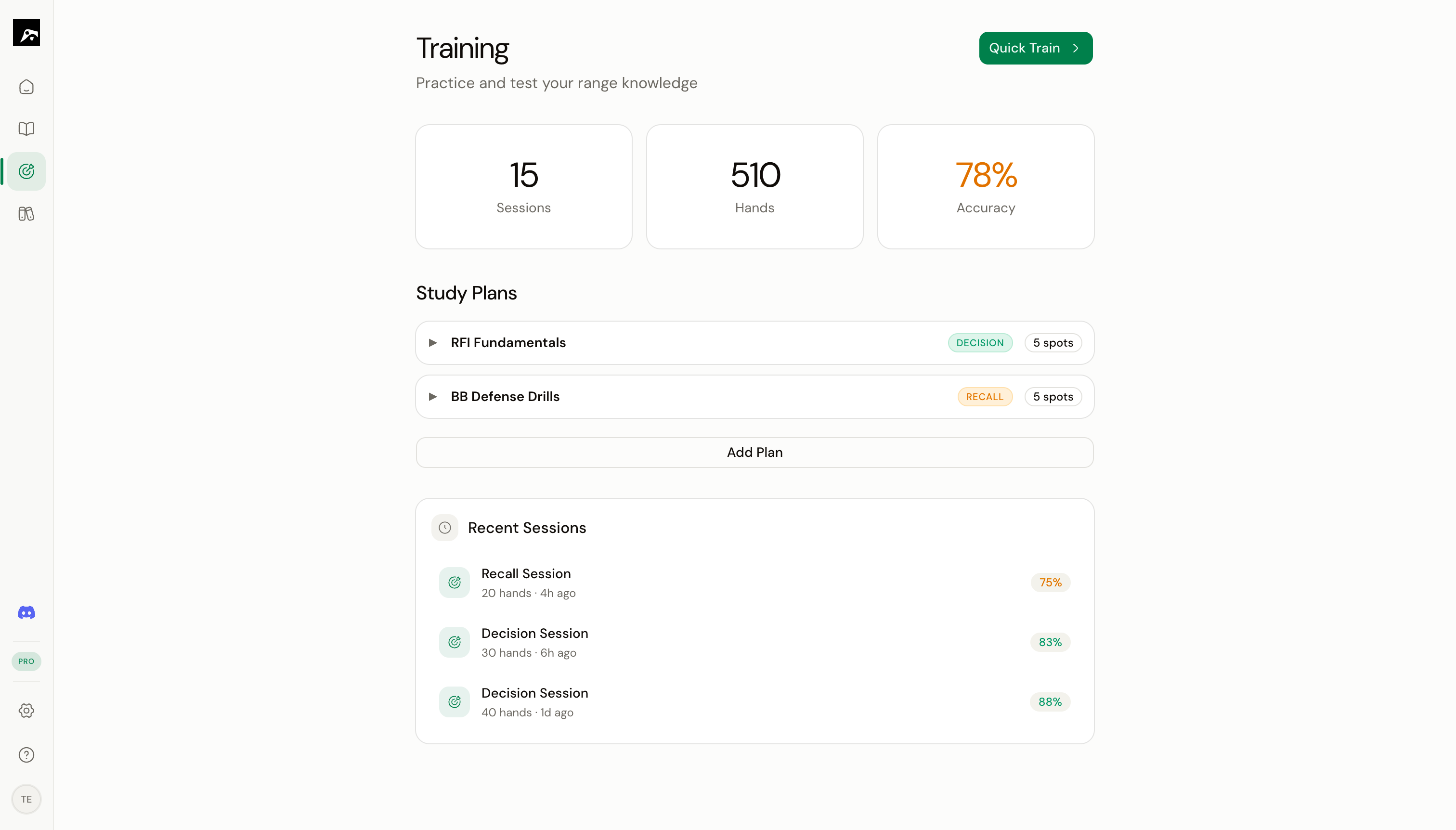 Go to **Train** in the nav rail to see all your study plans. Each plan shows:
* Plan name
* Number of spots included
* Default training mode
* Your last session accuracy
## Create a new study plan
In the Train section, click the **+** button or **New Study Plan**.
Enter a descriptive name like "6-Max Opening Ranges" or "BB Defense vs CO".
Browse your strategies and pick the spots you want to include. You can select spots from multiple strategies.
Set defaults for:
* **Training mode** — Decision or Recall
* **RNG enabled** — Whether mixed strategies use the random number generator (Pro/Elite)
* **Auto-advance** — Automatically move to the next hand after answering
Your study plan is ready. Click **Start** to begin training.
## Edit a study plan
1. Click on the study plan to open it.
2. Click **Edit** to modify the name, spots, or settings.
3. Add or remove spots as needed.
4. Click **Save** to apply changes.
## Reorder spots in a plan
Drag and drop spots within a study plan to change the order they appear during training.
When spaced repetition is active, the system may override your custom order to prioritize spots that are due for review. Manual order applies when all spots have equal priority.
## Delete a study plan
1. Click the study plan to open it.
2. Click **Delete**.
3. Confirm the deletion.
Deleting a study plan does **not** delete the spots or their training data. It only removes the plan itself.
## Study plan tips
### Build focused plans
Create small, focused plans instead of one giant plan with every spot:
| Good plan examples | Why |
| -------------------------------- | ---------------------------------- |
| "UTG All Actions" (5 spots) | Focused on one position |
| "Weak Spots This Week" (4 spots) | Based on dashboard recommendations |
| "3-Bet Ranges" (6 spots) | Focused on one decision type |
### Rotate plans
Don't train the same plan every day. Rotate between 2–3 plans to get broader coverage while still going deep on each one.
### Use dashboard recommendations
Check your Home dashboard for **Today's Focus** and **Weak Spots**. Build study plans around the spots the system recommends for review.
Go to **Train** in the nav rail to see all your study plans. Each plan shows:
* Plan name
* Number of spots included
* Default training mode
* Your last session accuracy
## Create a new study plan
In the Train section, click the **+** button or **New Study Plan**.
Enter a descriptive name like "6-Max Opening Ranges" or "BB Defense vs CO".
Browse your strategies and pick the spots you want to include. You can select spots from multiple strategies.
Set defaults for:
* **Training mode** — Decision or Recall
* **RNG enabled** — Whether mixed strategies use the random number generator (Pro/Elite)
* **Auto-advance** — Automatically move to the next hand after answering
Your study plan is ready. Click **Start** to begin training.
## Edit a study plan
1. Click on the study plan to open it.
2. Click **Edit** to modify the name, spots, or settings.
3. Add or remove spots as needed.
4. Click **Save** to apply changes.
## Reorder spots in a plan
Drag and drop spots within a study plan to change the order they appear during training.
When spaced repetition is active, the system may override your custom order to prioritize spots that are due for review. Manual order applies when all spots have equal priority.
## Delete a study plan
1. Click the study plan to open it.
2. Click **Delete**.
3. Confirm the deletion.
Deleting a study plan does **not** delete the spots or their training data. It only removes the plan itself.
## Study plan tips
### Build focused plans
Create small, focused plans instead of one giant plan with every spot:
| Good plan examples | Why |
| -------------------------------- | ---------------------------------- |
| "UTG All Actions" (5 spots) | Focused on one position |
| "Weak Spots This Week" (4 spots) | Based on dashboard recommendations |
| "3-Bet Ranges" (6 spots) | Focused on one decision type |
### Rotate plans
Don't train the same plan every day. Rotate between 2–3 plans to get broader coverage while still going deep on each one.
### Use dashboard recommendations
Check your Home dashboard for **Today's Focus** and **Weak Spots**. Build study plans around the spots the system recommends for review.