
Before you start
To run a training session, you need at least one strategy with one spot that has some cells painted. If you haven’t created anything yet, the fastest way to get started is to grab a strategy from the Library.Option A: Train from the Library (fastest)
1
Go to the Library
Click Library in the nav rail.
2
Find a strategy
Browse the available solutions or use the search bar. Look for a Simplified GTO strategy — these are available on all plans and are great for getting started.
3
Add it to your strategies
Click on a strategy card, then click Add to My Strategies. The strategy and all its spots are copied to your account.
4
Go to Study
Click Study in the nav rail. Your new strategy appears in the tree on the left.
5
Select a spot and start training
Click on any spot in the tree to load it. Then press ⌘T (or click the Train button in the toolbar) to start a quick training session on that spot.
Option B: Create a strategy and train on it
1
Go to Study
Click Study in the nav rail.
2
Create a strategy
Click the + button at the top of the strategy tree. Give your strategy a name (for example, “6-Max Cash Opening Ranges”) and choose a game format.
3
Add a spot
Right-click your strategy in the tree and select Add Spot. Choose a position (for example, UTG) and an action line (for example, Open Raise).
4
Paint some cells
Select an action color from the palette on the right, then click or drag on cells in the 13×13 grid to mark which hands belong to that action. For example, paint the hands you’d open-raise in green.
5
Start training
Press ⌘T or click Train in the toolbar.
During the training session

- Look at the hand displayed on the poker table visualization.
- Pick an action by clicking the action button or pressing the corresponding number key (1, 2, 3, etc.).
- RangeSharp tells you immediately if you were right or wrong. If wrong, it shows you the correct action.
- Press Space to advance to the next hand, or let auto-advance move you forward.
- Keep going until you’ve answered enough hands, then press Esc to end the session.
After the session
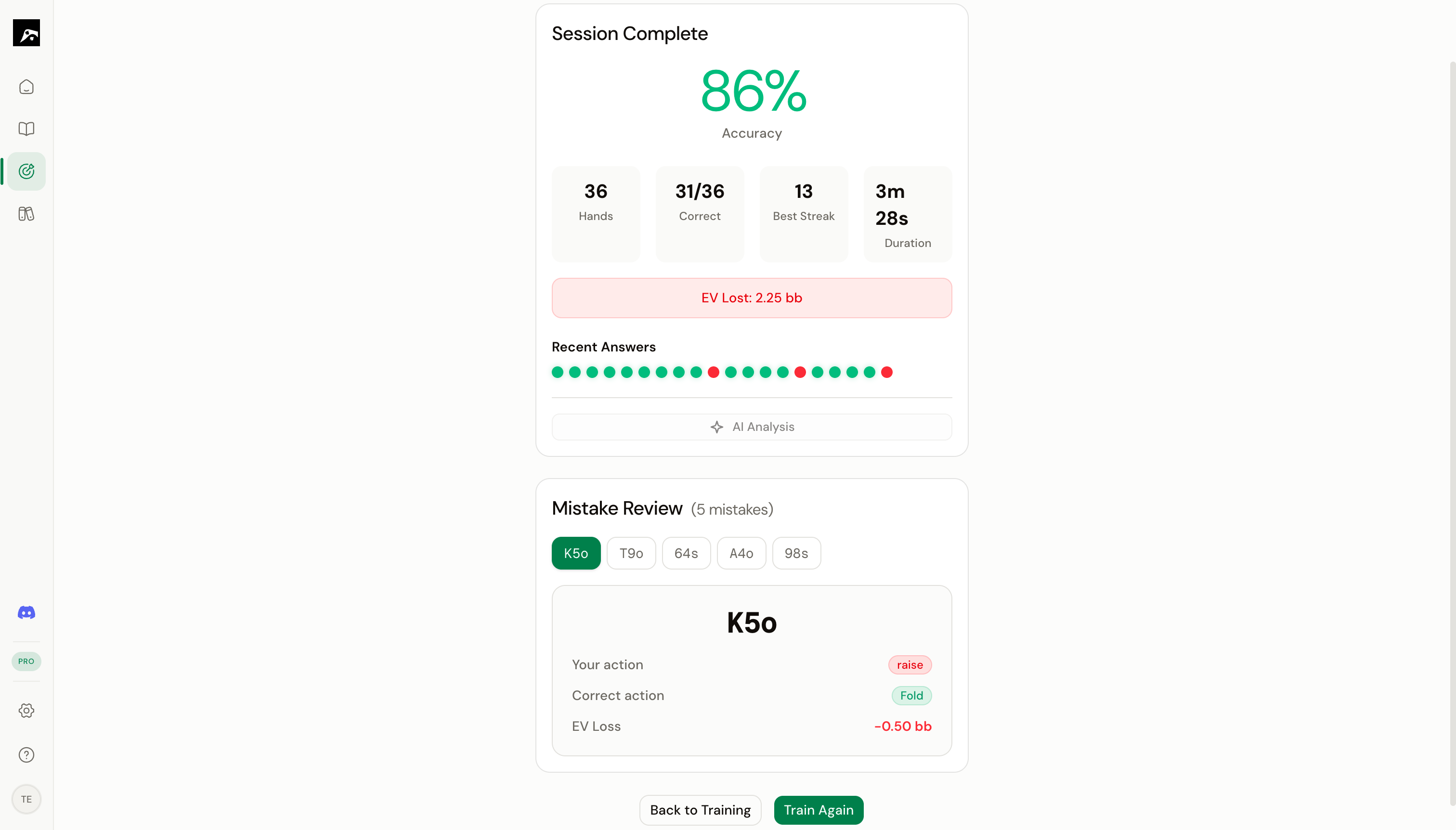
- Accuracy — Percentage of correct answers
- Hands played — Total hands in the session
- Longest streak — Most consecutive correct answers
- Mistakes — A list of hands you got wrong, with the correct action shown
Next steps
Learn about Decision mode
Understand how the deal-and-choose training works in detail.
Set up a study plan
Organize multiple spots into a structured training plan.