
Import not working
Paste doesn't detect the format
Paste doesn't detect the format
Possible causes:
- The text you copied isn’t complete solver output — make sure you copied the full range data, not just a partial selection
- The format isn’t supported on your plan — Free accounts can only paste Equilab and Flopzilla formats. Upgrade to Pro for all 7 formats
- The text format is unrecognized — check the Supported Formats list
- Copy the solver output again, making sure to select everything
- Try pasting in a plain text editor first to verify the content looks correct
- If using a Pro+ format on a Free account, upgrade or use a supported format
Import preview looks wrong
Import preview looks wrong
Possible causes:
- The format was auto-detected incorrectly
- The solver output includes data for multiple spots mixed together
- Don’t confirm the import — click Cancel
- Make sure you’re copying output for a single spot/position at a time
- Try importing again with cleaner input
.rsharp file won't import
.rsharp file won't import
Possible causes:
- The file was created with a newer version of RangeSharp
- The file is corrupted
- Config import requires Pro or Elite
- Verify you’re on a Pro or Elite plan
- Try downloading the file again from the original source
- Contact support if the problem persists
Training not starting
Study plan won't start
Study plan won't start
Possible causes:
- The study plan has no spots
- All spots in the plan have empty ranges
- You’ve hit the daily training limit on the Free plan (100 hands)
- Edit the study plan and make sure it has spots assigned
- Verify the spots have range data
- If on Free, wait until tomorrow for the limit to reset, or upgrade to Pro
Training session seems stuck
Training session seems stuck
What to try:
- Press Esc to end the session
- Reload the page
- Try starting the session again
Strategies not saving
Changes don't seem to save
Changes don't seem to save
RangeSharp auto-saves after 500ms of inactivity. If changes aren’t persisting:What to try:
- Check your internet connection — auto-save requires a connection
- Wait a moment and check the save indicator in the toolbar
- Reload the page and verify if changes were saved
- If on a very slow connection, wait a few seconds after making changes before navigating away
Strategy disappeared from the tree
Strategy disappeared from the tree
Possible causes:
- The strategy was accidentally deleted
- The page loaded before the strategy list finished syncing
- Reload the page
- Check if another account member deleted the strategy (if using team features)
- The deletion cannot be undone — you’ll need to recreate the strategy
Login issues
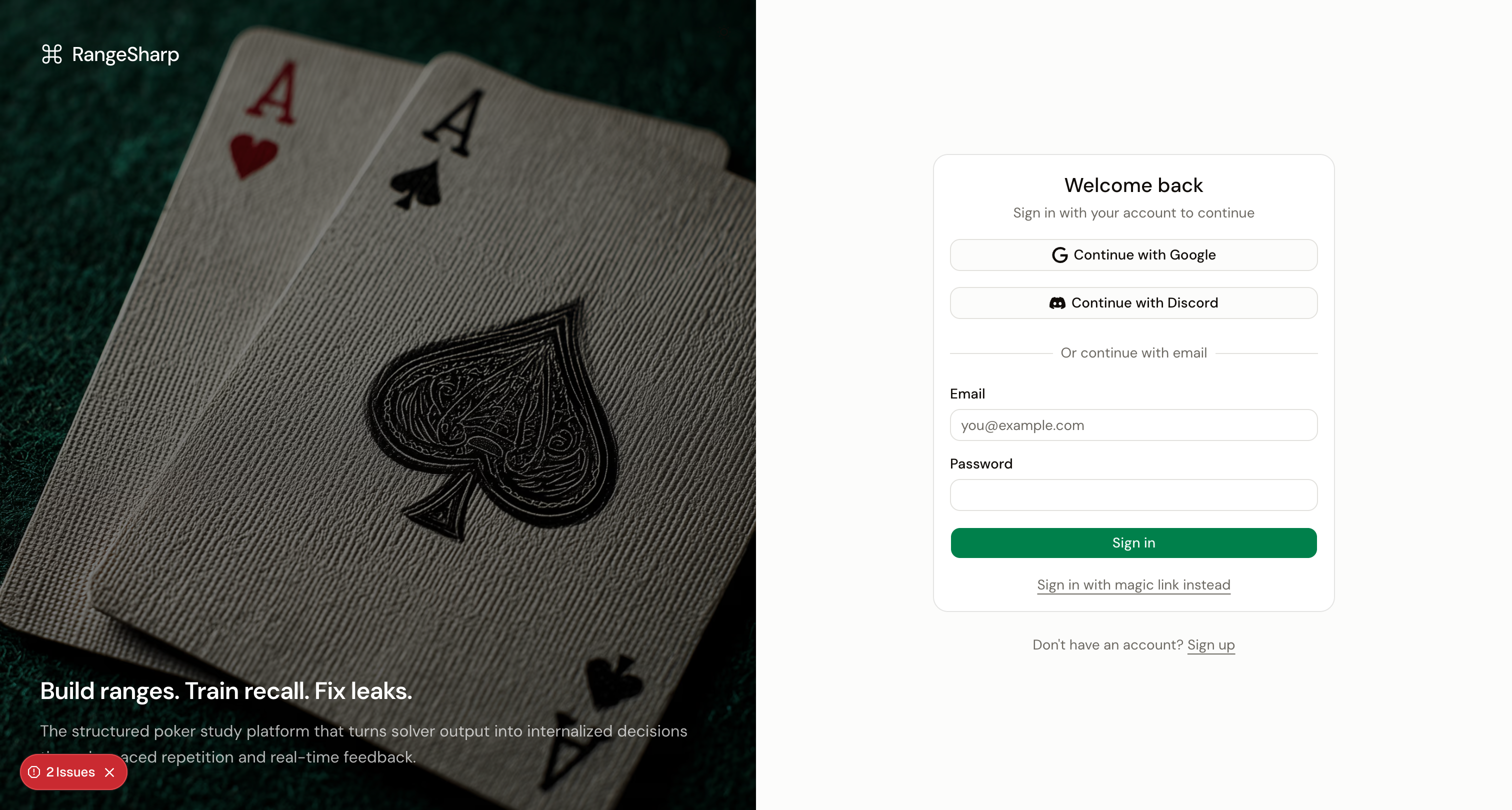
Can't log in with email and password
Can't log in with email and password
What to try:
- Make sure you’re using the correct email address
- Click Forgot Password to reset your password
- Check that you verified your email when you first signed up
- Try signing in with Google or Discord if you linked those providers
Google or Discord login fails
Google or Discord login fails
What to try:
- Make sure you’re allowing the popup/redirect to complete
- Clear your browser cookies for rangesharp.com and try again
- Try a different browser to rule out extension conflicts
- If you previously had an account with a different provider, try that provider instead
Magic link doesn't arrive
Magic link doesn't arrive
What to try:
- Check your spam/junk folder
- Wait 2–3 minutes — email delivery can sometimes be delayed
- Try requesting another magic link
- Make sure you entered the correct email address
Grid display issues
Grid looks blurry or has rendering artifacts
Grid looks blurry or has rendering artifacts
The grid uses canvas rendering (Konva) which is sensitive to display scaling.What to try:
- Zoom your browser to 100% (⌘0 or Ctrl+0)
- Try a different browser (Chrome and Firefox have the best canvas support)
- Make sure your display scaling is set to 100% or 200% (not 125% or 150%)
Grid is too small on my screen
Grid is too small on my screen
What to try:
- Resize the browser window — the grid scales with available space
- Try collapsing the left or right panels to give the grid more room
- Check Settings → Preferences for grid size options
Performance issues
App feels slow
App feels slow
What to try:
- Close other browser tabs to free up memory
- Clear your browser cache for rangesharp.com
- Make sure your browser is up to date
- RangeSharp works best on Chrome, Firefox, or Edge