
The Study workspace
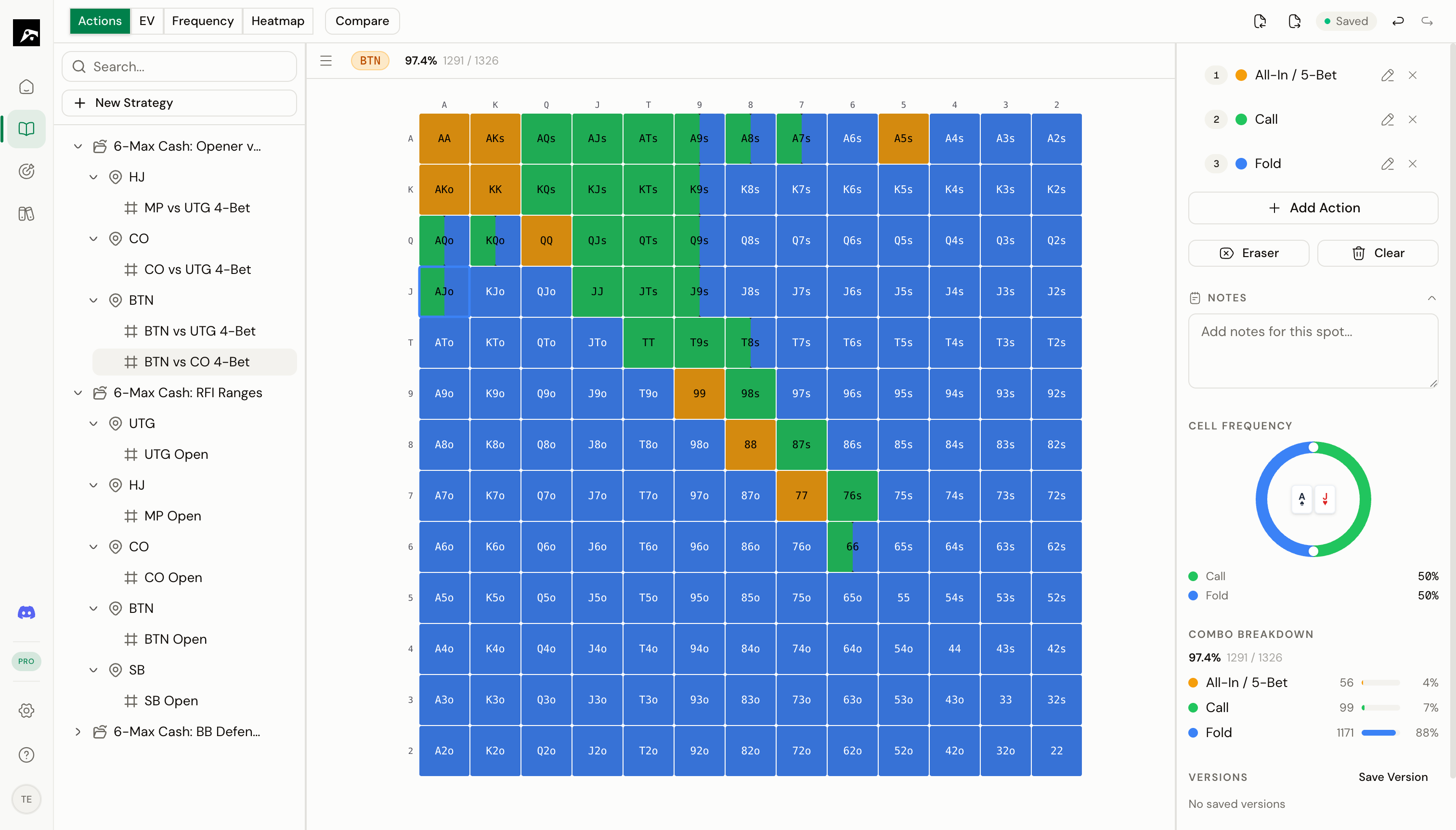
Layout
The Study workspace has three main areas:Above the grid
- Spot context bar — Shows the current spot’s position, action line, and stack depth
- Toolbar — Access overlays, compare mode, import/export, screenshot, and training shortcuts
Working with the strategy tree
The left panel displays your strategies as a tree. Each strategy expands to reveal its spots, organized by position and action line.- Click a spot to load it into the grid
- Right-click for context menu options (add spot, duplicate, delete, rename)
- Drag and drop to reorder spots within a strategy
- Mastery badges appear next to each spot, showing your training progress
Working with the range grid
The center of the workspace shows the 13×13 hand matrix. This is a canvas-based grid for smooth, responsive interaction.- Click a cell to toggle the active action on/off
- Click and drag across cells to paint multiple hands at once
- Shift+click a cell to open the frequency adjuster (Pro/Elite)
- Arrow keys to navigate between cells
What you can do in the Study workspace
Create strategies
Start a new strategy from scratch
Add spots
Add individual situations to study
Paint ranges
Click and drag to build your ranges on the grid
Action palette
Manage action colors and keyboard shortcuts
Adjust frequencies
Set weighted frequencies for mixed strategies
Compare ranges
View ranges side by side with diff highlighting
Use overlays
Switch between action, EV, frequency, heatmap, and diff views
Version history
View and restore previous versions of a spot