
The action palette
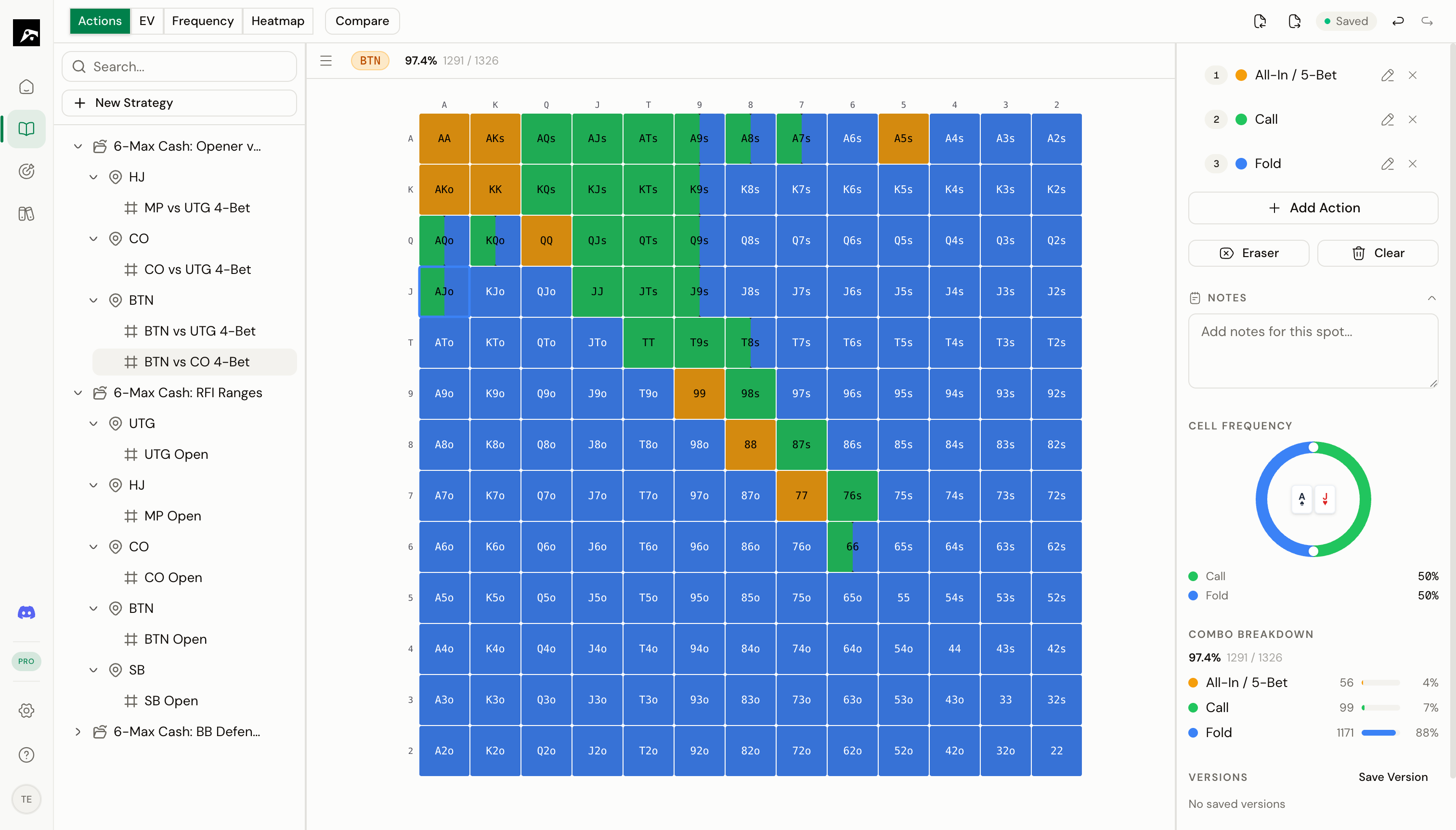
- A color — displayed on the grid
- A name — like “Raise”, “Call”, or “Fold”
- A keyboard shortcut — the number key (1–9) to quickly switch to it
Select an action
Click any action in the palette to make it the active action. The active action is highlighted and will be applied when you click or drag on the grid. You can also press 1–9 on your keyboard to switch actions without moving your mouse.Add a new action
1
Click the + button in the palette
At the bottom of the action list, click Add Action.
2
Name the action
Type a name (e.g., “3-Bet”, “Limp”, “All-In”).
3
Choose a color
Click the color swatch to open the color picker. Choose any color you like.
4
Click Save
The new action appears in the palette and is ready to use.
Action limits by plan
Change an action’s color
- Click the color swatch next to the action.
- Use the color picker to select a new color.
- The grid updates immediately to reflect the change.
Rename an action
- Double-click the action name in the palette.
- Type the new name.
- Press Enter to save.
Delete an action
- Click the × or trash icon next to the action.
- Confirm the deletion.
Default action colors
You can set default action colors in your preferences so every new spot starts with your preferred setup:- Go to Settings → Preferences.
- Under Default Action Colors, configure your default actions and colors.
- New spots will use these defaults instead of the system defaults.